Neck pain, sore wrists, and stiff shoulders can make desk work tiring. These problems often start when the chair, monitor, or keyboard does not match your body.
An ergonomic desk setup places each item where you can use it without leaning, reaching, or bending for long periods.
You do not always need costly furniture to make useful changes. This blog explains how to arrange your workspace for better support, comfort, and easier movement throughout the workday.
What is an Ergonomic Desk Setup?
An ergonomic desk setup fits the person using it to the workspace. Your feet should rest on a firm surface, your lower back should touch the chair, and your shoulders should stay relaxed.
The keyboard, mouse, phone, and other daily items should sit within easy reach. A healthy setup also leaves room for movement.
Sitting in one fixed pose for hours may still cause stiffness, even when the furniture fits well.
The aim is to reduce strain, keep joints relaxed, and make it easy to sit, stand, or walk during the day.
Ergonomic Desk Setup Measurements at a Glance
Use these measurements as starting points. Your height, eyesight, desk size, and work tasks may call for small changes. Users can also check their ideal measurements with a desk height calculator to find a starting point based on their body size and preferred working position.
| Desk Element | Starting Position | Comfort Check |
|---|---|---|
| Chair height | Feet flat and thighs close to level | No strong pressure behind the knees |
| Backrest | Lower back fully supported | You can sit back without slouching |
| Armrests | Near elbow height | Shoulders stay relaxed |
| Desk surface | Close to seated elbow height | Forearms stay near level |
| Monitor height | Top of screen near eye level | Head stays upright |
| Monitor distance | About an arm’s length away | Text is clear without leaning |
| Keyboard | Close and directly in front | Wrists stay straight |
| Mouse | Besides the keyboard | Shoulder stays relaxed |
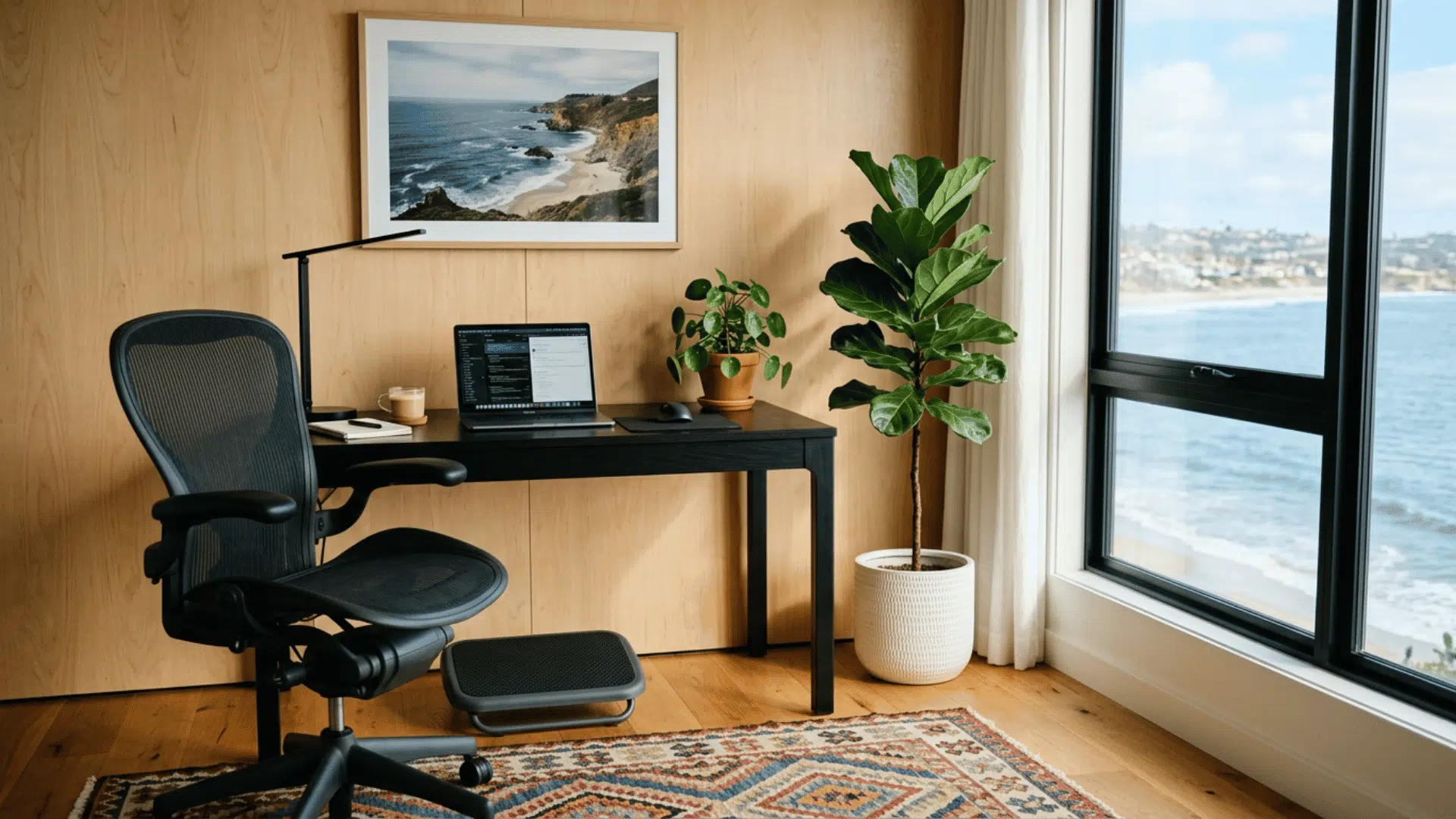
| Footrest | Firm support under both feet | Legs do not hang |
How to Create an Ergonomic Desk Setup Step by Step
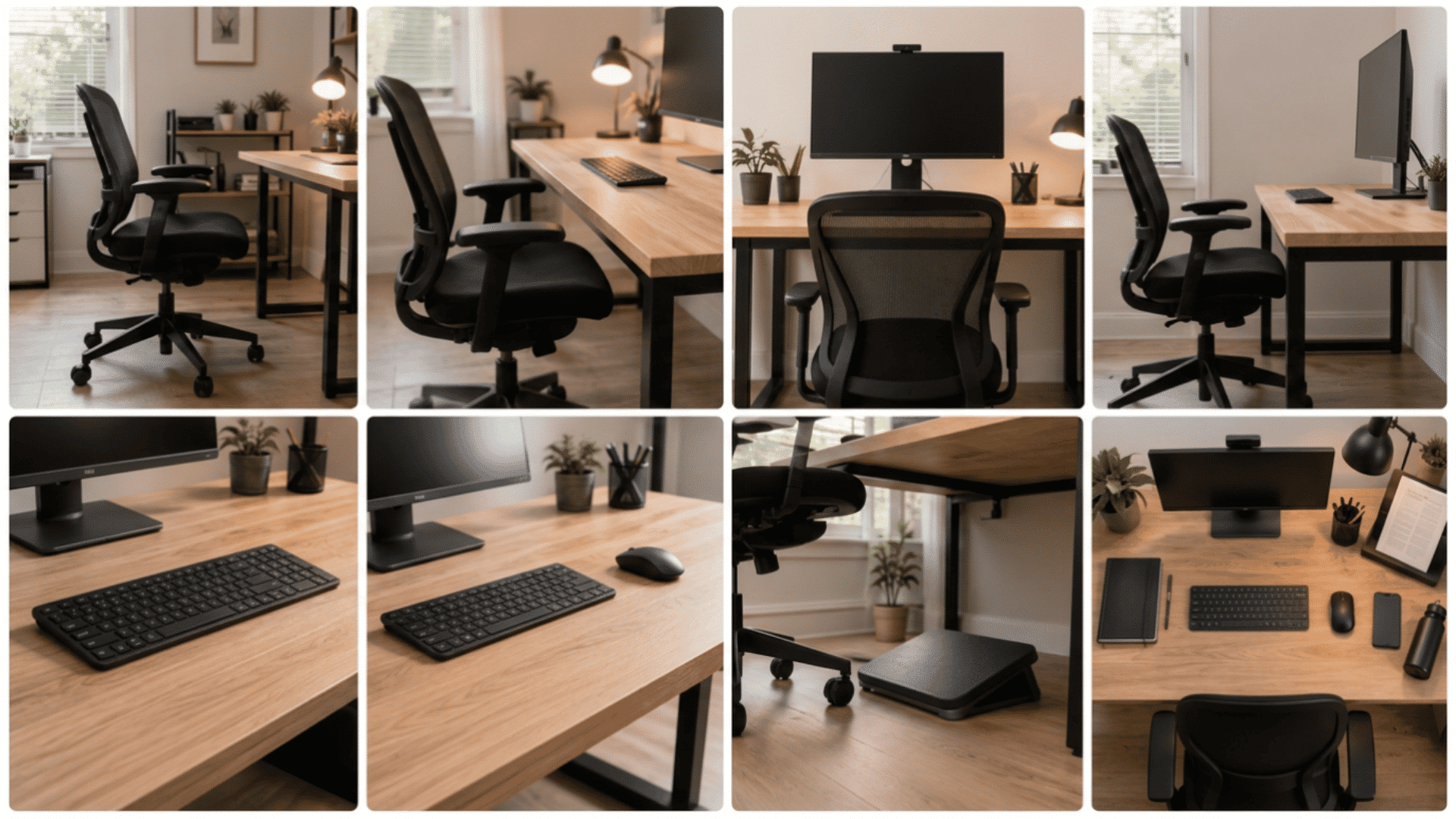
Set each part in this order to reduce reaching and keep your body comfortably supported.
Start by Adjusting Your Chair
Set the chair before moving the screen or keyboard. Raise or lower the seat until both feet rest flat on the floor.
Your thighs should feel supported, with no hard pressure behind your knees.
Sit back so the backrest follows the curve of your lower back. Lower the armrests if they raise your shoulders.
Once the chair feels comfortable, use your elbow height to place the desk tools. This gives the rest of the setup a clear starting point.
Match The Desk Height to Your Elbows
Place your hands over the keyboard while keeping your elbows close to your sides.
Your forearms should stay close to level, and your shoulders should remain loose. If the desk is too high, raise the chair and add a footrest.
If it is too low, use stable desk risers. A keyboard tray may help with a fixed desk. Keep your wrists away from sharp desk edges.
Finding the correct desk height depends on body proportions and sitting position. This desk height guide explains the measurements that help create a more comfortable workspace.
Place The Monitor at a Comfortable Height
Set the monitor directly in front of your chair. The top part of the screen should be near eye level or slightly below it.
This lets you view most of the screen with a small downward eye movement.
Avoid placing the screen so high that your chin tips upward. People who wear bifocals may need a lower screen position.
Keep the main work area near the middle of the display, so your head does not stay turned or tilted during long tasks.
Set The Correct Monitor Distance
Place the monitor about an arm’s length away as a first step. Move it slightly closer or farther until you can read the text without leaning forward.
A large screen may feel better from a greater distance. Increase the text size before moving your face close to the display.
Keep the main task near the center of the screen. OSHA recommends a viewing distance of at least 20 inches for many computer workstations, though eyesight and screen size also affect the most comfortable viewing distance.
Position The Keyboard for Straight Wrists
Keep the keyboard directly in front of you and close enough that your elbows remain beside your body.
Your wrists should stay straight rather than bending upward, downward, or sideways. Place the keys at elbow height or slightly lower.
Raised keyboard feet can tilt the keys too far upward, so leave them flat when that feels better.
Type with light pressure and let your hands move across the keys. Avoid resting your wrists on the desk while typing.
Keep The Mouse Close to the Keyboard
Place the mouse beside the keyboard at the same height. You should reach it without lifting your shoulder or stretching your arm.
Move the mouse with the elbow and shoulder rather than relying only on the wrist. A faster pointer setting may reduce large hand movements.
Keyboard shortcuts can also reduce repetitive mouse use. A vertical mouse or trackball may suit some users, yet placement still matters.
Test a new device during short sessions before using it for a full workday.
Support Your Feet Properly
Both feet should rest flat while your back stays against the chair. If raising the chair leaves your feet hanging, add a firm footrest.
A stable box or solid stack of books can work for a short time. Keep both feet supported instead of wrapping them around the chair base.
The footrest should not lift your knees so high that they press against the desk.
A slight slope may feel comfortable, especially when the surface allows you to adjust your foot position during the day.
Arrange Daily Items Within Easy Reach
Keep your phone, notebook, water bottle, and other daily items within your normal reach.
Objects used less often can sit farther away. Place a document holder beside the monitor when you often copy from paper.
This can limit repeated head movement. Use a headset or speaker for long calls instead of holding a phone between your shoulder and ear.
Check that drawers, storage boxes, and cables leave enough space for your knees, feet, and chair movement.
Ergonomic Setup Tips for Different Workstations
Different workstations need small changes to keep your body supported and reduce strain. Use these tips for laptops, dual monitors, standing desks, and screen lighting.
- Laptop Setup: Raise the laptop on a stand or books. Use a separate keyboard and mouse at elbow height. Keep the screen in front of you.
- Dual-Monitor Setup: Place the main screen in front. Keep the second screen close, at the same height, and angled inward. Center the screens when used equally.
- Standing Desk: Keep knees loose, shift your stance, and switch between sitting and standing. Build one with this DIY standing desk guide.
- Lighting and Glare: Place daylight to the side of the monitor. Use blinds, a task lamp, and screen brightness. Please increase the text size instead of leaning forward.
Create an Ergonomic Setup in a Small Space
A small desk can still feel comfortable when each item has a clear place. Remove objects that push the keyboard or monitor too far away.
A monitor arm or narrow riser can free space under the screen. A compact keyboard may leave more room for the mouse.
Use wall shelves or upright storage for papers and supplies. Route cables away from your legs and chair wheels.
A clamp-on keyboard tray may help when the desk is shallow. Check that each added part stays firm during typing and mouse use. Loose stands and trays can create new posture problems.
A monitor arm or riser desk can free space under the screen while helping adjust the workspace height.
Final Thoughts
A comfortable ergonomic desk setup starts with the chair, followed by the desk, monitor, keyboard, and mouse.
Support your feet, keep daily items within reach, and change position during the day. Review the measurement table beside your current setup and pick one change to try today.
Tell us in the comments which adjustment you made first and how it changed the way your workspace feels during your next work session.
Frequently Asked Questions
Should a Desk Face a Wall or An Open Room?
Either position can work when the screen has low glare, and there is enough room behind the chair.
Can Desk Plants Affect Workspace Comfort?
Small plants may make a work area feel calmer, though they should not block light or reach space. Place them away from cables, vents, screens, and areas where water could spill.
Is a Monitor Arm Necessary for An Ergonomic Setup?
No, a monitor arm is optional. A stable riser or stack of books can place the screen at a comfortable height.